- Product

- Pricing
- Affiliate Program
- Developers
- Resource
 EN
EN
Many people search for an android emulator for windows because they want to run Android apps on a PC. But that search can mean very different things.
One user may only want to open a banking app or a messaging app on a Windows laptop. Another may want better keyboard controls for Android games. A developer may need to test an APK across several Android versions. A team may need separate Android environments for different accounts.
Those users should not choose the same setup.
This guide does not repeat another long list of Android emulator tools. Instead, it compares the main options by use case: cloud Android emulator, local emulator, performance-focused emulator, developer virtual device, and Windows 11 native Android options. Each section explains where the option works, where it falls short, and which tool fits that use case.
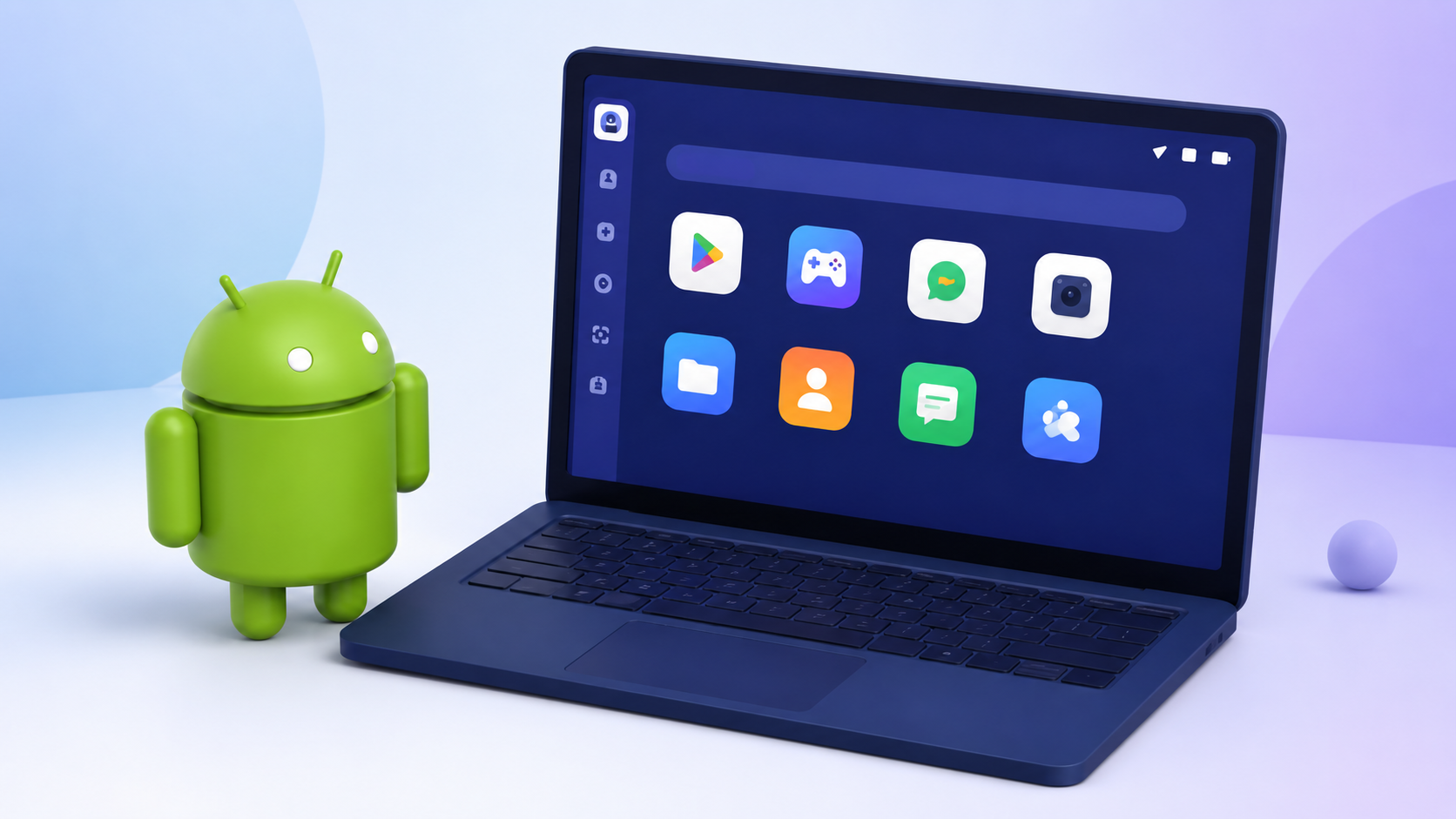
The short answer is simple: choose by task, not by brand name.
If you only run one Android app, a local emulator is usually enough. If you play mobile games on PC, choose a gaming-focused emulator. If you build Android apps, use a developer virtual device. If you manage many Android environments, a cloud Android emulator is usually a better fit than opening more local emulator windows.
A good android emulator for windows should match the work you actually need to do. A tool can have many features and still be the wrong choice if it uses too much memory, shows too many ads, crashes during long sessions, or cannot run the app you need.
Before choosing one, check these points:
Does it work well on Windows 10 or Windows 11?
How much CPU, RAM, and GPU does it use, and how heavily does it affect your overall system resources?
Can your PC handle more than one instance?
Does it support the Android version your app needs?
Is the setup simple or technical?
Does it stay stable during long sessions?
Does it support keyboard mapping, file transfer, and APK installation?
Can it separate Android environments for different accounts?
Does it support proxy, network, or team controls if needed?
Are there ads, bundled apps, or unnecessary prompts?
Developer-focused Android emulators often need at least 8 GB of RAM and 4 GB of disk space. Intel VT-x or AMD-V should be enabled for better performance. Larger screen virtual devices can also require higher specs.
For casual users, setup and compatibility matter most. For gamers, FPS and keyboard mapping matter more. For developers, debugging and Android version testing are the key points. For multi-account work, the bigger issue is whether each Android environment can stay separate and stable.
That is why this article separates emulator options by workflow instead of treating every tool as the same type of software.
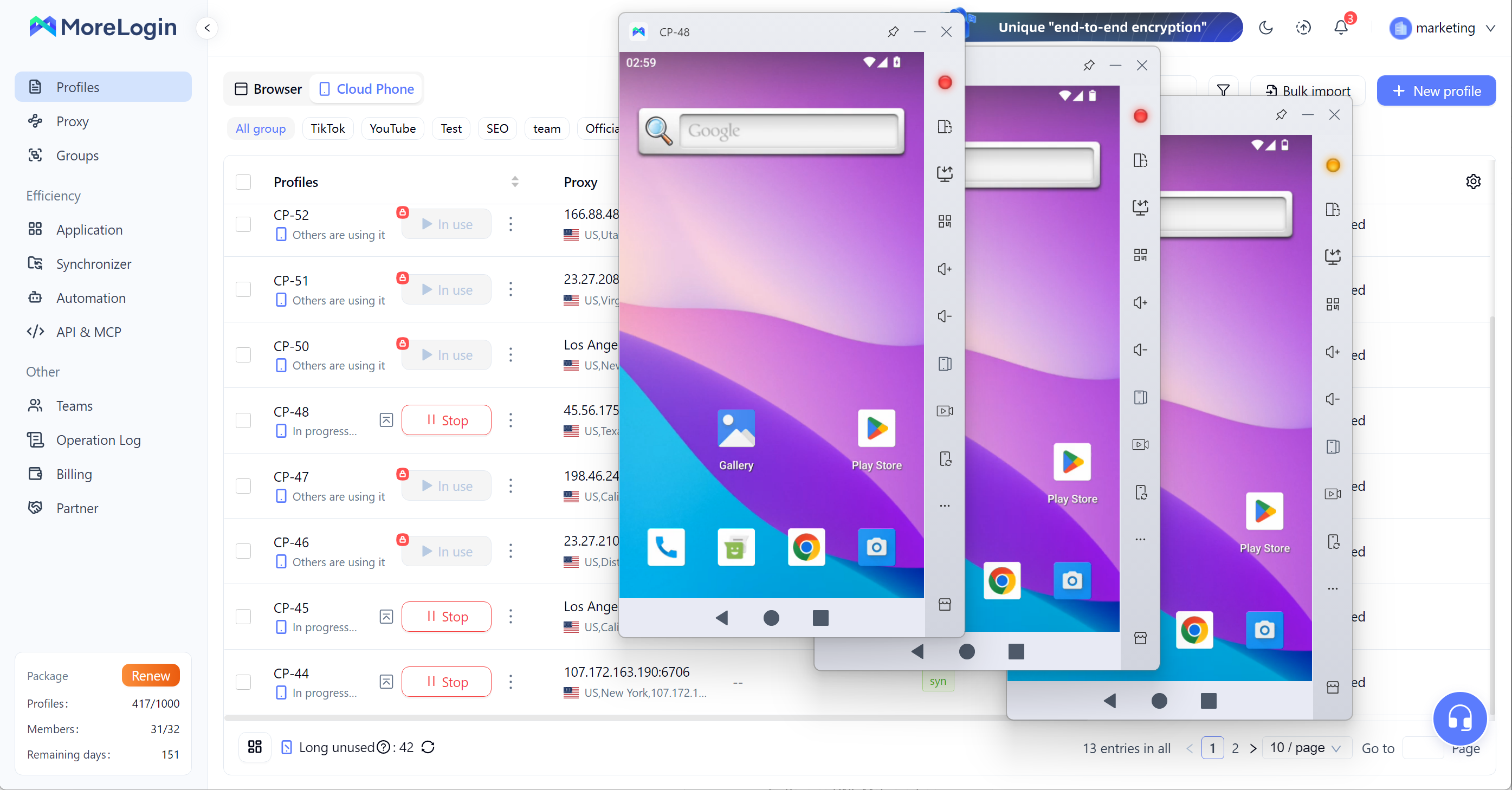
A cloud Android emulator is not mainly for someone who only wants to open one Android app on a PC. It is for users who need several Android environments without putting all the pressure on one Windows device.
A local emulator runs on your own computer. That means every Android instance uses your local CPU, RAM, GPU, and disk space. One instance may run fine. Three or five instances can slow the machine down. More than that can become hard to manage, especially if you need long sessions.
A cloud Android emulator moves the Android environment away from the local PC. This makes more sense when the work involves multiple accounts, mobile-side checks, team access, or repeated Android workflows. The point is not only “running Android on Windows.” The point is managing separate Android environments without turning your Windows computer into the bottleneck.
This is also where a cloud Android emulator is different from a normal emulator. It is closer to a managed Android environment than a simple app player. If you are unsure whether this direction fits your work, this cloud phone vs emulator comparison explains the difference between local emulators and cloud-based Android environments.
Best for:
Multi-account Android workflows
Separate mobile environments
Long-running Android sessions
Team-based Android operations
Users who do not want every instance running on a local Windows PC
Account tasks that need cleaner environment separation
Limits:
Not the best choice for casual Android gaming
Not necessary if you only need one simple Android app
Requires cloud access
May feel more than needed for personal light use
Recommended tool:
MoreLogin
MoreLogin fits users who need cloud-based Android environments, account separation, and mobile workflows from a Windows computer. It is not just for opening one Android app. It works better when the user needs to manage several Android environments, keep work separated, or let a team handle mobile tasks from one platform.
A local Android emulator runs Android apps directly on your Windows computer. This is the most familiar option. You install the emulator, open it, sign in, and run apps from inside a virtual Android environment.
For users looking for an android emulator for windows 10, a local emulator can still be enough. It works well when the task is simple and the PC has enough resources. If you only want to open one or two apps, test a basic APK, or use Android apps casually, there is no need to make the setup complicated.
The main advantage is convenience. Most local emulators are easy to install. Many support Google Play, APK installation, keyboard mapping, screen rotation, and basic file transfer. For personal use, that may cover everything.
The weakness is resource usage. Local emulators use your own CPU, RAM, GPU, and storage. If your Windows PC is old or already running heavy software, the emulator may lag. Multi-instance use can make this worse. Some users also dislike ads, app suggestions, or bundled content in certain emulators.
A local emulator is a good answer for light use. It is not a good answer for every workflow.
Best for:
Casual Android apps
Simple Android app access on Windows
Personal use with one or two instances
Users who want a quick setup
Basic APK testing
Limits:
Uses local CPU, RAM, GPU, and disk space
Can become slow with multiple instances
Not ideal for long-term multi-account workflows
Environment separation is limited
User experience depends on ads, updates, and bundled apps
Recommended tool:
BlueStacks
BlueStacks, launched in 2011, is one of the oldest Android emulators and a practical local android emulator for windows users who want quick setup and basic Android app access on PC. It also offers wide compatibility for casual app use. In supported games, it can reach 60+ FPS, though performance still depends on your PC. MSI App Player is a BlueStacks-based alternative with fewer ads. It is a better choice for casual users than for teams or heavy multi-account workflows.
A performance-focused Android emulator is still a local emulator, but it is built more around speed, FPS, keyboard controls, and game settings.
This option is mainly for users who want to play Android games on a Windows PC. A normal app user may not care about frame rate, key mapping, or gamepad support. A gamer does. If the controls feel delayed or the emulator drops frames, the experience is poor.
A performance-focused android emulator for windows usually gives more control over CPU allocation, RAM allocation, resolution, FPS, keyboard shortcuts, and multi-instance settings. With gpu acceleration, some emulators deliver better performance, while software rendering is usually the fallback on unsupported systems. Some also include gaming features aimed at play and capture rather than everyday app use. These additional features can include screen recording, and some setups also help with running multiple apps when users are multitasking.
The limit is clear: it still runs on local hardware. If the Windows PC has weak specs, the emulator will not perform well just because it is gaming-focused. Running several windows at the same time can still slow the system down. This type of emulator is also not built for strong account separation or team workflows.
Best for:
Android gaming on Windows
Users who need keyboard mapping
Users who care about FPS and control settings
Games that run better with custom performance settings
Light app use where speed matters
Limits:
Still depends on local hardware
Multiple instances can use a lot of resources
Not built for account isolation
Not ideal for team operations
Performance varies by PC specs and app type
Recommended tool:
LDPlayer
LDPlayer is a good fit for users who mainly care about Android gaming or smoother app performance on Windows. First released in 2018, it was built with a focus on gaming performance. It offers solid compatibility for different games on lower-end hardware and can run smoothly when the settings match the PC. It is best treated as a gaming-focused local emulator, not as a full account management environment.
A developer Android virtual device is not the same as a consumer emulator. It is built for app development, debugging, and mainly for testing purposes.
This option is for developers who need to check how an app behaves across different Android versions, screen sizes, device types, and system settings, including app running across different android devices, varied cpu cores, and changing network conditions without needing physical hardware. Developers can also simulate incoming calls and text messages. It is useful when you need to reproduce bugs, test layouts, inspect performance, or check an app before release.
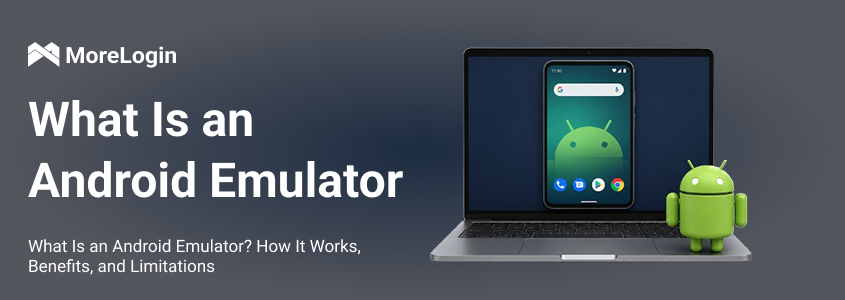
If you need the basic concept first, this guide explains what is an Android emulator and how virtual Android environments are used for testing.
The strength of a developer virtual device is control. Developers can create different virtual devices, test Android versions, simulate screens, and connect the emulator with development tools. It is also useful for automated testing as well as manual checks. That level of control is useful for software work.
The weakness is usability for normal users. Setup takes more time. The interface is technical. It is not built for someone who just wants to run an Android app on a Windows PC. It is also not designed for account operations, gaming comfort, or non-developer workflows.
Best for:
Android app development
APK testing
Android version testing
Debugging
Screen size simulation
Device profile testing
Limits:
More technical setup
Higher learning curve
Not ideal for casual app users
Not built for multi-account operations
Not the best choice for gaming
Recommended tool:
Android Studio Emulator
Android Studio Emulator is the official emulator for Android app development. It is strong for debugging and app testing, and virtual checks reduce reliance on physical hardware, but some validation still needs a physical device or real device. It is still too technical for users who only want to run Android apps on Windows.
Some Windows 11 users do not want a full emulator. They want Android apps to feel more native on the PC. That is where Windows-native or subsystem-based Android options come in. If you mainly want to play games on Windows, Google Play Games is the official option to consider.
This can work for light app usage. It may feel simpler than installing a full emulator, especially if the user only wants to open a few apps. Google Play Games for PC launched in 2022 and now supports around a thousand titles. It also offers save syncing across multiple devices and display support up to quad HD at 175hz. For people searching for an android emulator for windows 11, this option can look attractive because it sounds closer to built-in Android support.
But this category needs caution. Support status, installation method, app availability, and compatibility can change. Some apps may not run correctly. Some setups may depend on community builds or extra configuration. That makes it risky for important workflows.
A native Android app option is fine for testing light app access. It is not a strong choice for multi-account work, team operations, or long-term Android environment management.
Best for:
Windows 11 users
Light Android app usage
Users who do not want a full emulator
Simple app access on a Windows PC
Limits:
Compatibility may vary
App availability may be limited
Support status should be checked before use
Not suitable for advanced multi-account management
Not a full replacement for a cloud Android emulator or dedicated local emulator
Recommended tool:
Windows Subsystem-based Android option
A Windows Subsystem-based Android option can work for light Android app usage on Windows 11, but it should not be treated as a safe choice for important workflows unless the current support status and app compatibility have been checked. For app access, subsystem-based options can be enough, but users who mainly want a more user-friendly way to game on a bigger screen may prefer Google Play Games for PC.
The table below gives a simple view of which option fits which task.
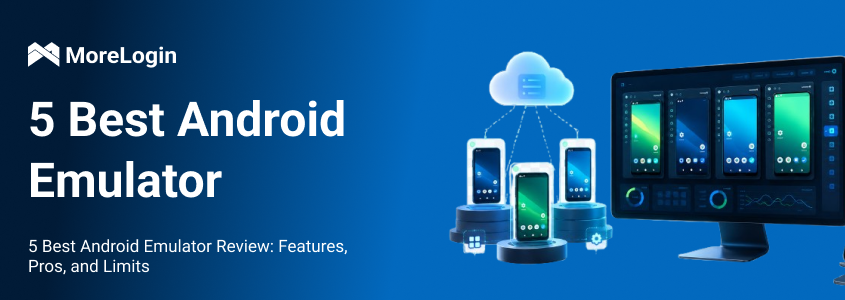
For readers who still want a traditional tool list, this best Android emulator review covers more emulator options. If you need a broader explanation of emulator use cases, this Android emulator guide is also useful.
For many Windows users, the real decision is not BlueStacks vs LDPlayer. It is local emulator vs cloud Android emulator.
A local emulator works when the task is small. It is easy to install and familiar. For gaming, basic app usage, or one-time testing, it often makes sense. The problem starts when the user needs more than a few instances or needs every environment to stay separate.
A cloud Android emulator makes more sense when the workflow is repeated, account-based, or team-based. It reduces pressure on the local Windows PC and gives users a better way to manage several Android environments.
This does not mean every user needs a cloud Android emulator. If you only want to play one game or open one app, a local emulator is enough. But if you need several Android environments, a cloud setup is easier to manage than stacking more emulator windows on one PC.
The best android emulator for windows depends on what you need to do. A local emulator is enough for casual apps. A performance-focused emulator is better for Android games. Android Studio Emulator is better for developers. Native Windows 11 Android options may work for light use, but support and compatibility should be checked first.
For users who need separated Android environments, multi-account operations, and repeated mobile workflows, a cloud Android emulator is often the better setup. It avoids putting every Android instance on the local Windows PC and gives teams a clearer way to manage Android work.
For users who need browser profiles, cloud Android environments, and account management in one platform, MoreLogin provides a more scalable way to manage Android and web-based workflows from one place.
What is the best android emulator for windows?
The best android emulator for windows depends on the task. For casual app use, BlueStacks can work. For gaming, LDPlayer is a better fit. For development, Android Studio Emulator is the better option. For multi-account workflows and separated Android environments, MoreLogin is usually a stronger choice.
What is the best android emulator for windows 10?
For basic use, a local emulator can work as an android emulator for windows 10. BlueStacks is a common choice for simple Android app access. If the Windows 10 PC has limited RAM or CPU, avoid running many instances at once. For heavier account workflows, a cloud Android emulator is easier to manage.
What is the best android emulator for windows 11?
The best android emulator for windows 11 depends on the workflow. A Windows Subsystem-based Android option may work for light app usage, but compatibility should be checked. For gaming, a performance-focused emulator is usually better. For separate Android environments and account workflows, a cloud Android emulator makes more sense.
Is a cloud Android emulator better than a local Android emulator?
A cloud Android emulator is better for multi-account workflows, separated Android environments, remote access, and team operations. A local emulator is better for simple personal use, gaming, and basic app access. The cloud option is not automatically better for every user. It is better when scale and environment separation matter.
Can I use an Android emulator for multi-account management?
Yes, but a normal local emulator can become heavy if you run many instances. It also gives limited environment separation compared with cloud-based Android environments. For small personal use, a local emulator may be enough. For larger multi-account workflows, a cloud Android emulator is usually easier to control.
Is windows emulator for android the same as Android emulator for Windows?
No. Many users search “windows emulator for android,” but they usually mean Android emulator for Windows. An Android emulator for Windows lets you run Android apps or Android-like environments on a Windows PC. A Windows emulator for Android would mean running Windows on an Android device, which is a different use case.
 EN
EN